🚀 How to Boost WordPress Site Speed (Even If You’re Not a Developer)
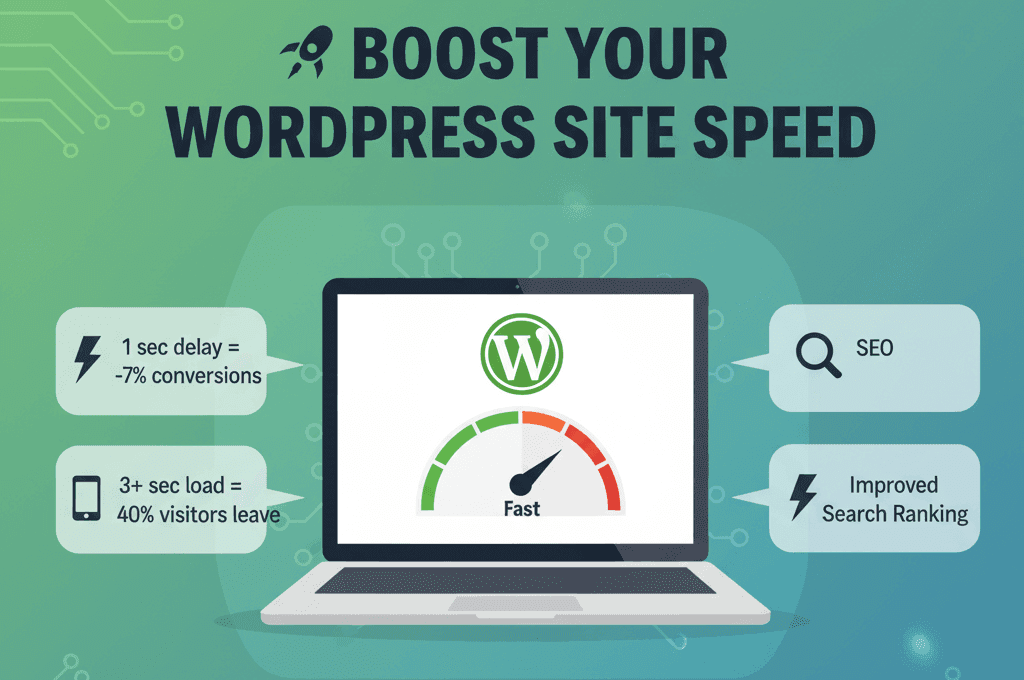
⏱️ Did you know? A slow website can cost you real customers. Research shows:
- A 1 second delay can reduce conversions by 7%.
- At 3+ seconds load time, nearly 40% of visitors leave your site.
If your WordPress website feels slow, don’t panic. You don’t always need a developer — there are simple steps you can take yourself to speed it up and keep your business thriving online.
1. Clean Up Your Plugins and Themes
Every plugin adds weight to your site.
- Delete plugins you no longer use.
- Replace heavy plugins with lightweight alternatives.
- Keep your WordPress core, themes, and plugins updated to avoid slowdowns and security risks.
👉 At Codlinker, we always recommend a regular plugin audit to prevent hidden slowdowns.
2. Use a Caching Plugin
Caching helps your site load faster by storing pages so they don’t have to rebuild every time.
- Recommended tools: WP Rocket, LiteSpeed Cache, or W3 Total Cache.
- Most caching plugins have one-click setup options.
💡 Need help? Codlinker’s optimization services can set this up in minutes.
3. Optimize Your Images
Large images are one of the biggest speed killers.
- Resize before uploading.
- Use plugins like Smush or ShortPixel to compress.
- Switch to WebP format for smaller, faster files.
✅ At Codlinker, we automate image optimization so your site always stays fast.
4. Choose the Right Hosting
Your hosting provider has a huge impact on performance.
- Shared hosting = cheaper but often slower.
- Managed WordPress or cloud hosting = better performance and uptime.
- Look for hosting with CDN (Content Delivery Network) support.
👉 Codlinker helps businesses migrate to faster hosting without downtime.
5. Use a Lightweight Theme
Your theme sets the foundation for speed.
- Go with lightweight options like Astra, GeneratePress, or Kadence.
- Avoid bloated multipurpose themes with features you don’t need.
6. Minify and Combine Your Files
Your site loads CSS, JavaScript, and HTML files. Too many requests = slow site.
- Enable minification and file combining in your caching plugin.
- This reduces file size and speeds up delivery.
7. Monitor Your Speed Regularly
Check your progress with free tools:
- Google PageSpeed Insights
- GTMetrix
- Pingdom Tools
These tools show exactly what’s slowing your site and how to fix it.
✅ Final Thoughts
Boosting your WordPress site speed doesn’t have to be complicated. Start with simple wins — like caching, image optimization, and better hosting — and you’ll see results quickly.
A faster site means:
- Happier visitors
- More conversions
- Better Google rankings
And if you’d like expert help, Codlinker’s websites are built to launch in just 3 weeks — optimized for speed, SEO, and conversions right out of the box.
💻 Example: Enable Caching in WordPress
Here’s how to enable caching with WP Rocket in just a few lines:
// WP Rocket auto-cache configuration
if ( function_exists( 'rocket_clean_domain' ) ) {
    rocket_clean_domain(); // Clear cache
    rocket_generate_caching_files(); // Generate fresh cache
}